 Lumesson
Software training template
A complete 20-minute how-to for rolling out a new app: a tour of the screen, creating and sharing a first project step by step on screenshots, finding a setting by clicking on the screen itself and the shortcuts worth knowing — then a graded quiz. Play it below, then make it yours.
- 20 minto complete
- 22slides in 5 parts
- 3questions, 2 kinds
- SCORMxAPI · cmi5 · HTML5
Already have Lumesson? Open this template in the app
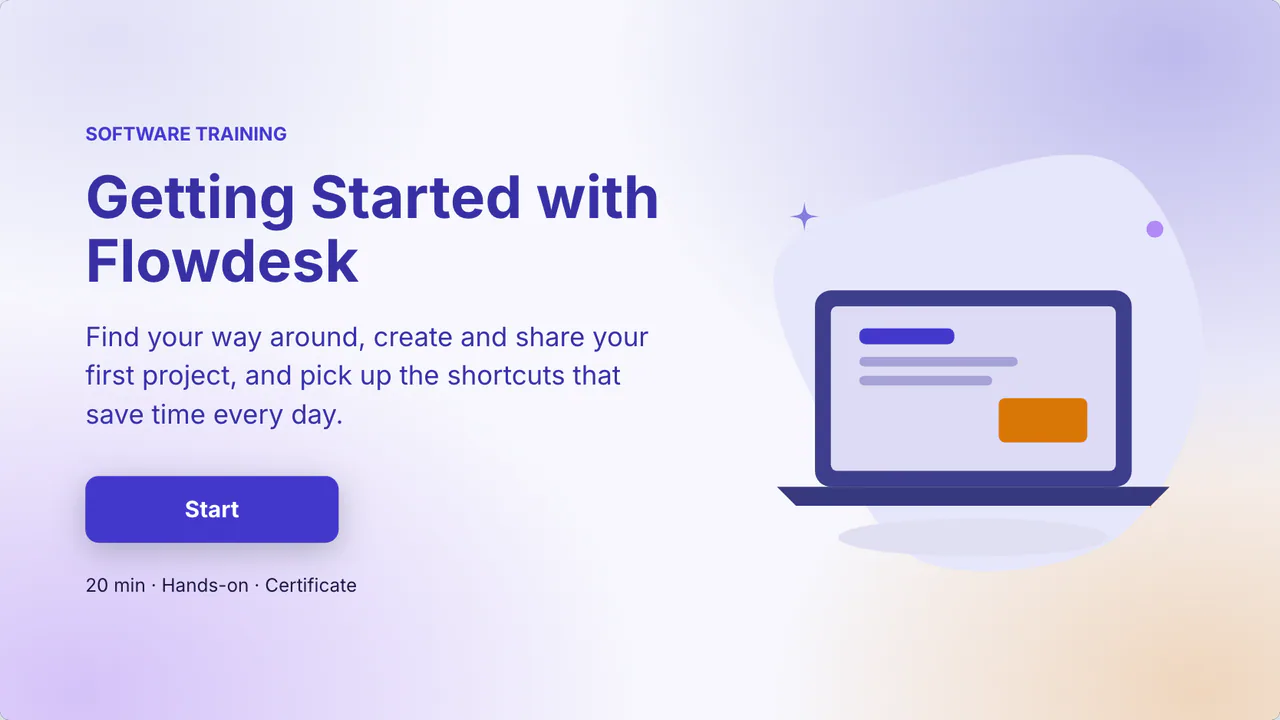 Play the course
Take “Getting Started with Flowdesk” as a learner
This is the real course, published from Lumesson as HTML5. Click through it, try every activity and take the test — nothing you do is recorded.
Open full screenWorks on phones and tablets too
22 slides in 5 parts
A free software training course for any new app: a screen tour, tasks on screenshots, click-on-the-screen practice, shortcuts and a graded quiz. Play it now.
Welcome
3 slidesFind your way around
3 slidesCreate and share
7 slidesKeep work moving
3 slidesCheck your skills
6 slidesA look at the course
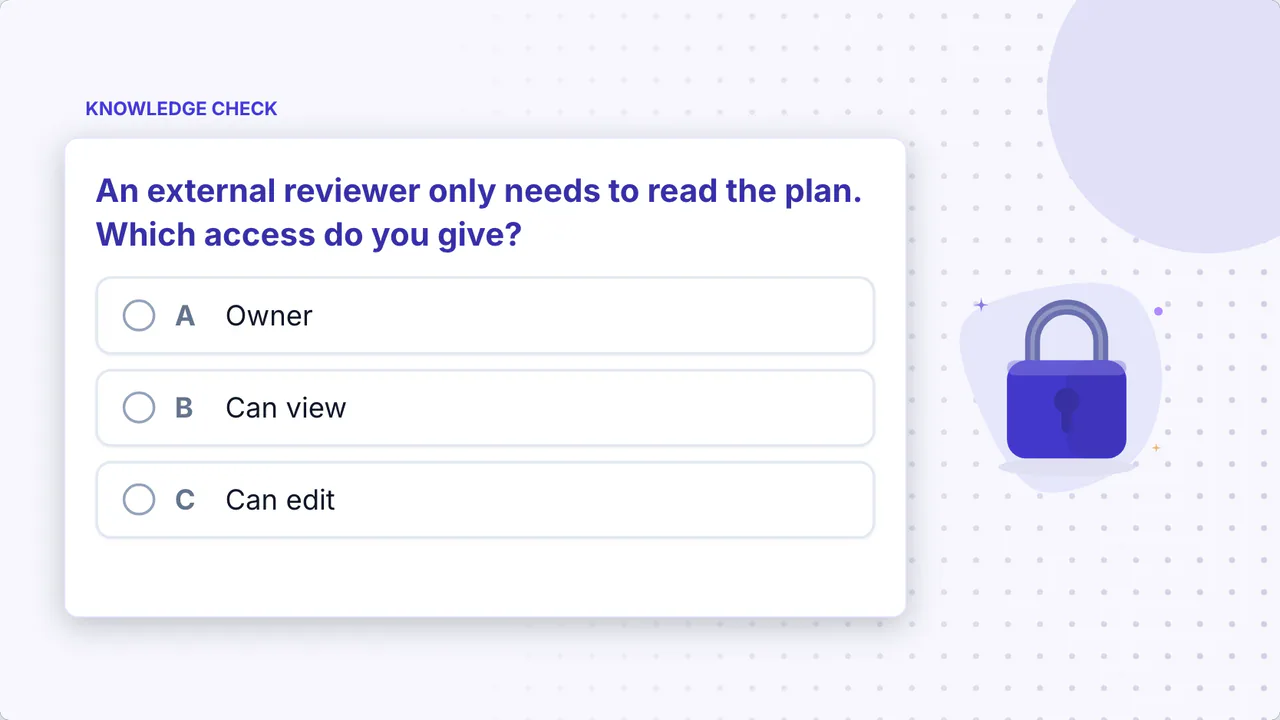
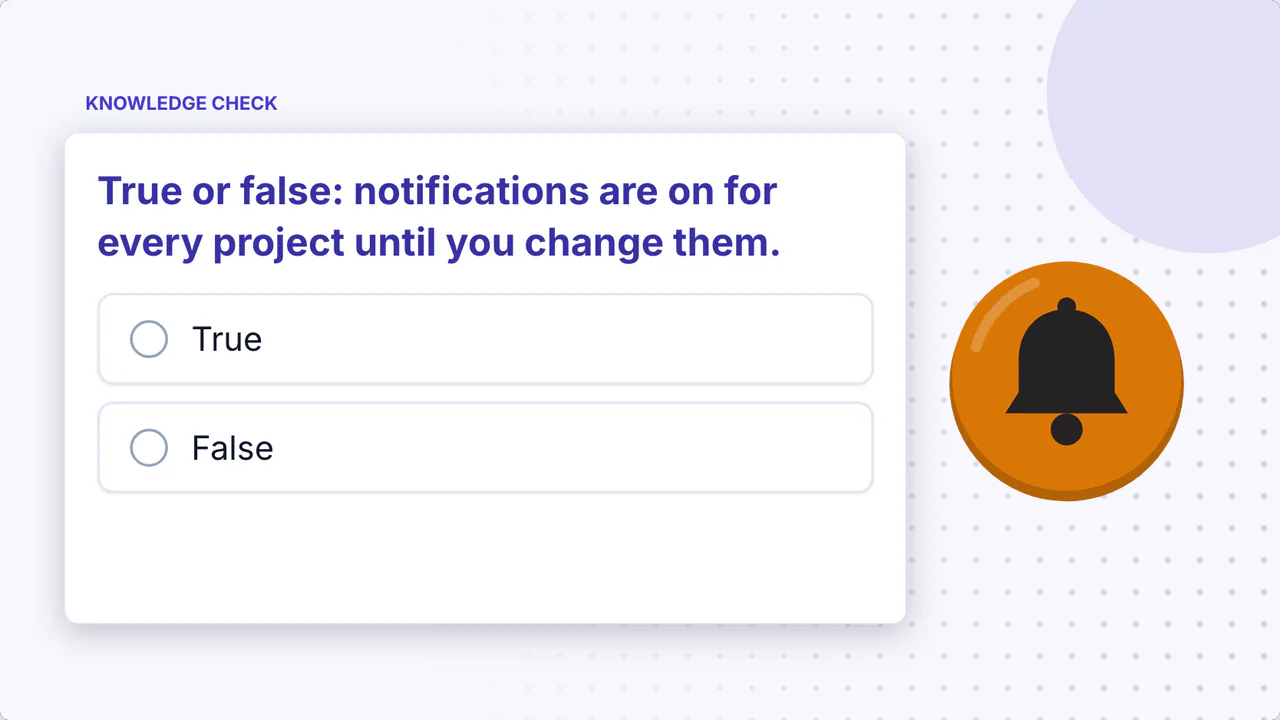
Learning by doing, not by reading
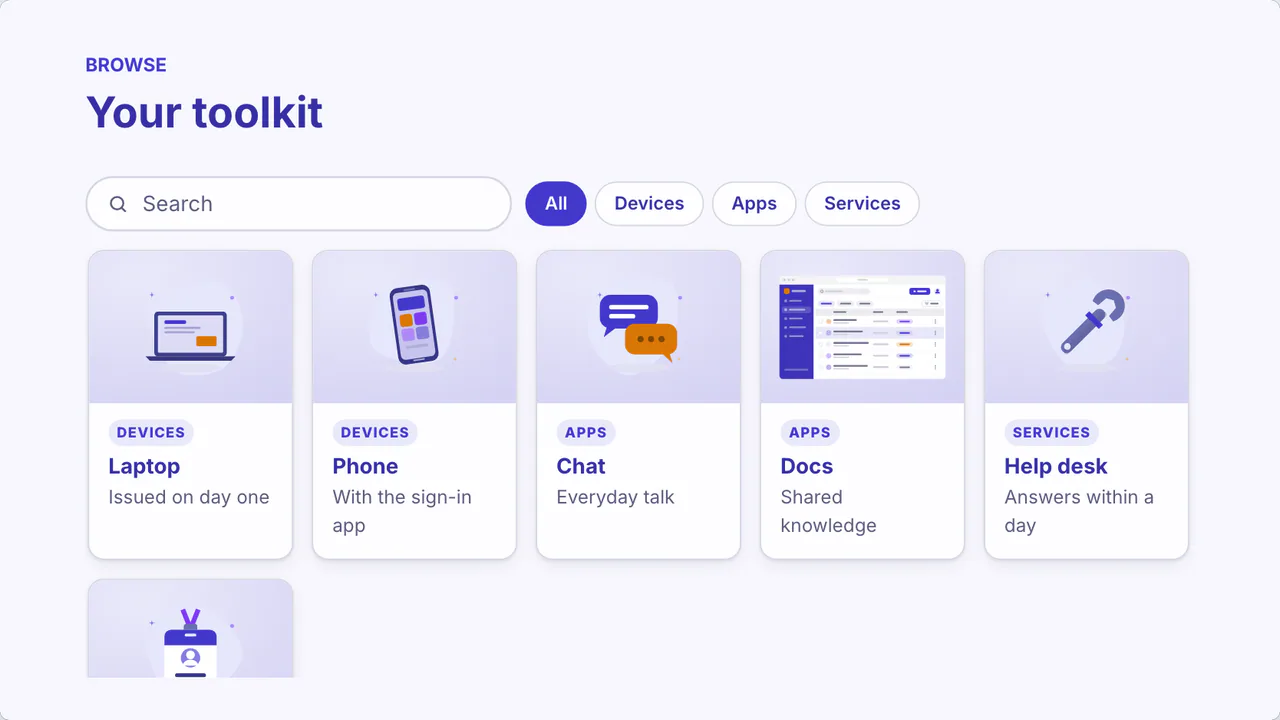
A toolkit to browse
A catalog of everyday tools — laptop, phone, chat, docs, help desk and badge — each with what it is for and a tip.
A tour of the screen
The app’s home screen with four numbered notes: the menu, search, the New button and the activity feed.
Tasks on real screens
Creating a project in four numbered steps on a screenshot, then sharing it one step per slide, with a tip to start with Can view.
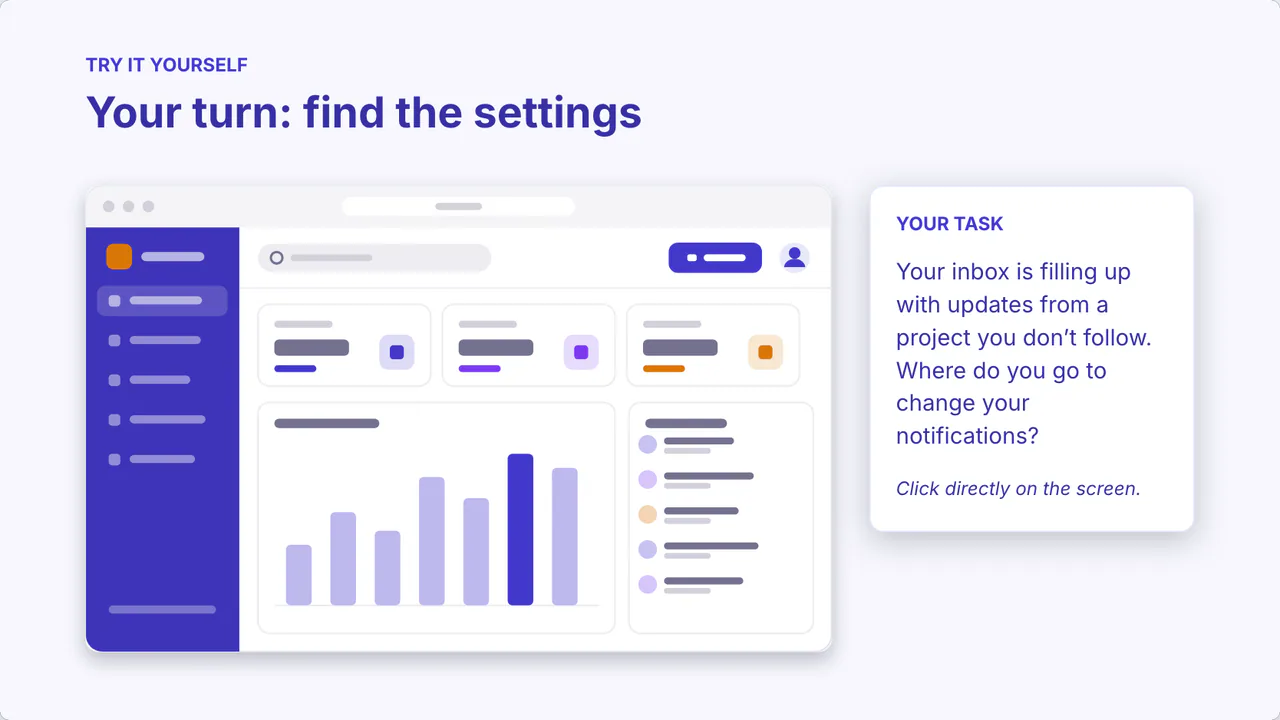
Your turn: click on the screen
“Where do you change your notifications?” Learners click on the screenshot itself; a wrong click shows a hint, the right one moves them on.
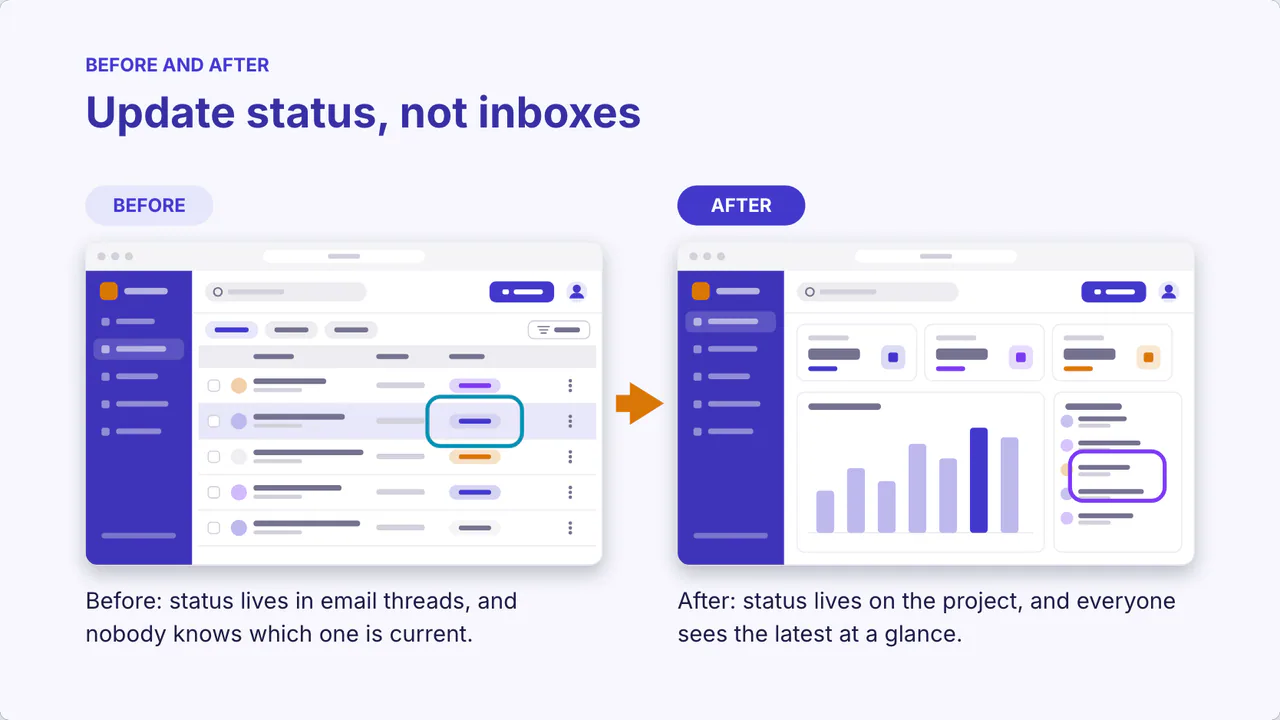
Before and after
Status lost in email threads next to status on the project, where everyone sees the latest at a glance.
Match the words
Learners drag Project, Task, Mention and Status onto what each one means; wrong pairs snap back.
Shortcuts that save time
Six keyboard shortcuts on one slide, with a reminder to use Cmd instead of Ctrl on a Mac.
A quiz, then next steps
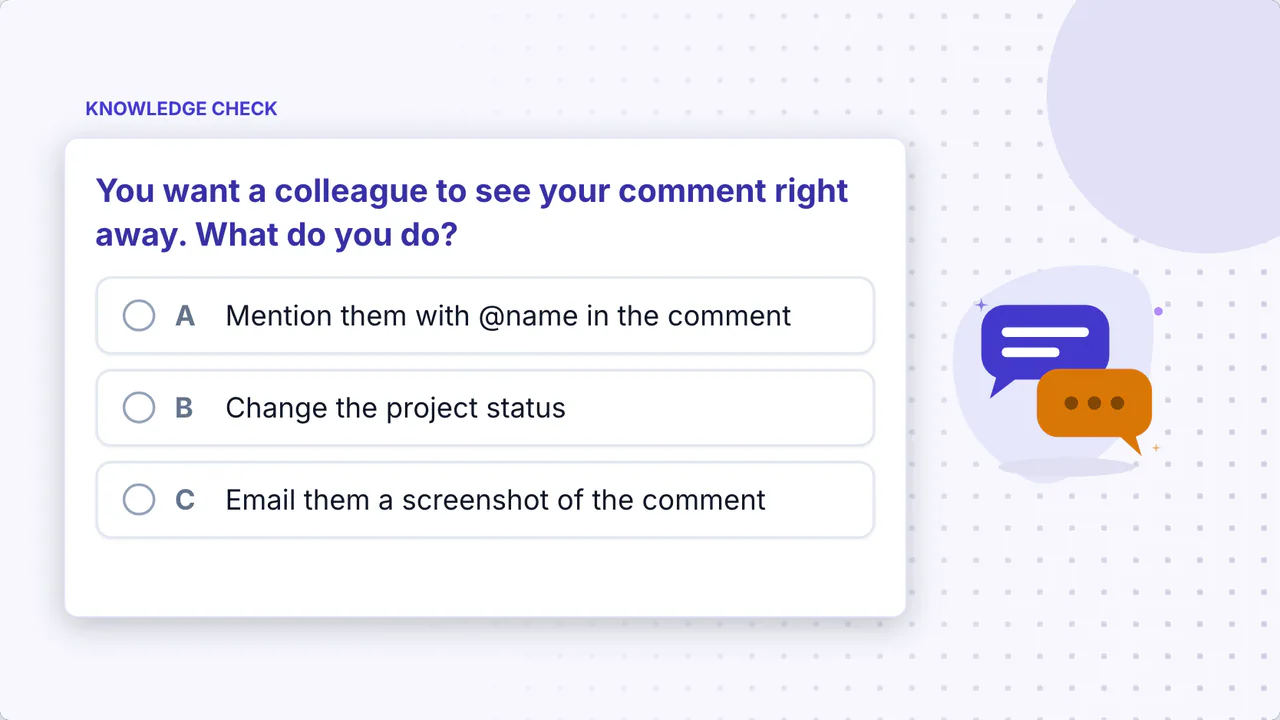
Three questions — two multiple choice, one true or false — with an 80% pass mark and a certificate, then what to do today, this week and this month.
After the course, learners can
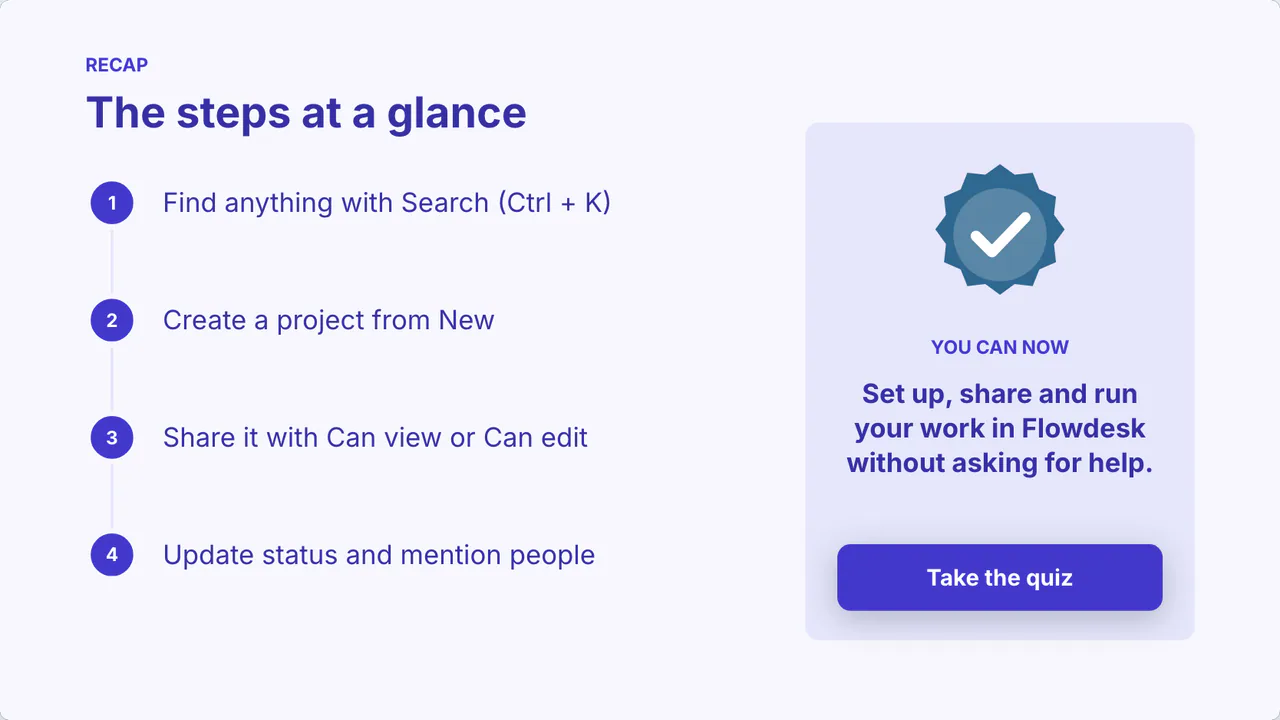
- Find their way around the main screen: the menu, search, the New button and the activity feed
- Create a project and share it with the right access — Can view or Can edit
- Keep work moving with status updates and @mentions instead of email threads
- Turn off the notifications they don’t need and star the projects they use most
- Work faster with six keyboard shortcuts, from Ctrl + K to Esc
Made for
- Software rollouts
- A first course for everyone when your company moves to a new tool.
- New starters
- Part of onboarding: the apps people use every day, before their first project.
- Customer onboarding
- A how-to for your own product’s new users, in your help center or academy.
- IT and L&D teams
- A ready structure for any app: swap the sample screens and steps for yours.
From template to your own course in minutes
Everything in the template can be changed in Lumesson — by hand, or by asking Lume AI.
- 1
Open it in Lumesson
Home ▸ Templates ▸ Getting started with a new app. Every slide, question and picture can be changed — on the Free plan too.
Learn more - 2
Record your own software
Record a real task once and Lumesson turns it into a software simulation learners watch, try and are tested on — then use it in place of the sample screenshots.
Learn more - 3
Make it about your app
Ask the Assistant: “This course is for our CRM. Replace Flowdesk with our CRM’s name, rewrite the sharing steps for adding a contact and add a question on logging a call.” It edits the real course and lists what it changed.
Learn more - 4
Add a video walkthrough
Record your screen and voice for a longer task; auto-zoom follows your clicks, and the video goes on a slide or out as an MP4.
Learn more - 5
Put it in your brand
Pick a brand kit and your logo, colours and fonts go onto every slide at once.
Learn more - 6
Narrate and caption it
Natural AI voices or your Mac’s own voices for every slide, and captions for the whole course in one step.
Learn more - 7
Publish to your LMS
SCORM 1.2 or 2004, xAPI, cmi5 or HTML5. Completion and the quiz score go to your LMS, so you know who is ready for go-live.
Learn more
Getting started with a new app: the details
| Length | About 20 minutes |
|---|---|
| Structure | 5 parts, 22 slides |
| Interactions | Catalog, Hotspot |
| Assessment | 3 questions: Multiple choice, True or false |
| Results | A results slide with the learner’s score and pass or fail |
| Publish to | SCORM 1.2, SCORM 2004, xAPI, cmi5, HTML5 — or a video, Word or PDF |
| Phones | A phone layout for every slide in one click |
| Language | English — translate the whole course with AI in one step |
| Editing | Every slide, picture, question and setting can be changed |
| Price | Free with Lumesson (the Free plan adds a small “Made with Lumesson” mark) |
Other courses to start from
 IT & softwareGetting IT help fastA free IT help desk course for employees: self-service, raising a ticket in the portal, priorities, a chat scenario, a memory game and a quiz. Play it now.
 OnboardingEmployee onboardingA free employee onboarding course for a new hire’s first week: values, a buddy, the first 90 days, a first-day plan, a scenario and a quiz. Play it now.
 ComplianceCybersecurity awarenessA free cybersecurity awareness training course: passwords, MFA, spotting phishing, a secure desk, a timed game and a four-question quiz. Play it now.
Read more
Software training for employees: a rollout plan that actually works
Software training for employees: plan a new system rollout by role, give people safe practice with simulations, add videos and guides, and measure results.
Read the guideGuideHow to create a software simulation from one screen recording
A step-by-step guide to software simulations: plan the task, record it once, clean up the steps, hide private data and publish View, Try and Test modes.
Read the guideGuideWork instructions and step-by-step guides: how to write them, with templates
How to write work instructions and step-by-step guides people actually follow: one task, numbered steps, one action each, pictures, warnings and templates.
Read the guideFrequently asked questions
Is this software training template free?
Yes. Every course template comes with Lumesson, including the Free plan, which has every authoring feature. Courses published on Free carry a small “Made with Lumesson” mark; a one-time Lifetime licence removes it.
Can I upload it to my LMS?
Yes. Publish it as SCORM 1.2, SCORM 2004, xAPI or cmi5 and upload the package to your LMS: it reports completion and the quiz score. You can also publish HTML5 for a website, help center or intranet.
Flowdesk isn’t our software. Can I use it for our own app?
Yes — Flowdesk is a made-up app so the course works for any tool. Swap the sample screenshots for your own, rename the steps, or record your real software and Lumesson turns it into an interactive simulation with watch, try and test modes.
Is this a software simulation?
The template teaches with annotated screenshots, step-by-step slides and a click-on-the-screen practice task. For a full simulation of your own app, record the task in Lumesson: it becomes View, Try and Test slides, with the Test mode scored in your LMS.
Can I change the questions and the pass mark?
Yes. Edit the three questions or add more from 20 question types, draw questions at random from a question bank, and set the pass mark and the number of tries.
How long does the course take?
About 20 minutes. Keep only the parts your people need for a shorter how-to, or split it into short lessons, one task each.
Make “Getting Started with Flowdesk” your own
Download Lumesson free for Mac, open the template from Home ▸ Templates and change anything — by hand or by asking Lume AI.