 Lumesson
Software simulations that see the interface the way your learners do
Record the task once. Lumesson reads the screen like an assistive technology does — which button, which field, which menu — and turns every click into a step learners watch, try and prove.
Less fixing after you record
Names the real button
Captions and hints say “Click Create deal”, not “click here”: Lumesson knows the control behind each click, even when you hit its icon or label.
Click areas that fit
Learners are marked right when they click the button, not a guessed rectangle: click areas fit each control’s real edges, offline.
Types in the real field
The focused field is looked up as you type, so learners type into the recorded field itself. Typing + Tab is one step; password fields stay masked.
Private data hidden
On-device text recognition finds e-mails, phone and card numbers, IBANs, IDs, names and addresses and blurs them — or swaps in sample data (macOS 13 or later).
No stray steps
Suggests removing clicks that did nothing, double clicks, menus opened and closed, erased typing and loading screens — you accept each one.
View, Try and Test
A guided tour with auto-zoom, practice with hints and “Show me”, and a scored test with limited attempts.
Steps that write themselves
Writing “Click the New deal button” forty times is the dull part of software training. Each step already knows the control it used and gets a clear caption. Add the other right answers and shortcuts learners may use — or let Lume AI word every caption.
- Click, double-click, right-click, drag, hover, scroll, keys and typing
- Click areas that fit every step, fixed with AI in one go when needed
- A typo or a real customer’s name on a screenshot fixed without recording again (macOS 13 or later)

Customer data never reaches your learners
Recordings of real systems are full of real people. Lumesson’s automatic redaction reads every screenshot on your Mac and blurs what it finds — checked with the same rules banks use for card and IBAN numbers — or replaces it with believable sample data. The reading happens on your computer; the optional AI pass for names only ever sees the text with every value it found removed.
- E-mails, phone and card numbers, IBANs and bank details, IDs, secrets, URLs, names and addresses
- Your own list of words to hide: customer names, project codes
- Blur any area by hand, on every platform

Watch it, try it, prove it
View plays the task as a guided tour that zooms to each step. Try lets learners do it themselves, with a hint after a wrong click and “Show me” when they are stuck. Test scores every action and reports it to your LMS.
- Every simulation in a course looks the same, set once
- Steps that can be done another way, or skipped ahead
- Phone layouts, captions and narration like any slide
A simulation, a video, a guide and editable slides
One recording gives you what everyone asks for: View, Try and Test slides in your course (or a project of their own), a step-by-step guide (SOP) as PDF, Word, HTML or a narrated MP4 — written from your clicks straight away, free — and a polished screen video.
- Narration recorded while you capture
- Quick capture from anywhere: Alt+Shift+S for a simulation, Alt+Shift+R for a video
- Re-record when the software changes: steps matched, edits kept

Lume AI writes the steps for you
- A clear caption for every recorded step
- Exact click areas for every step in one go
- Step-by-step guides written from the recording
- Simulations carried into translated copies of the course

See it in a ready-made course
Free, complete courses made in Lumesson. Play one in your browser, then open it in the app and make it yours.
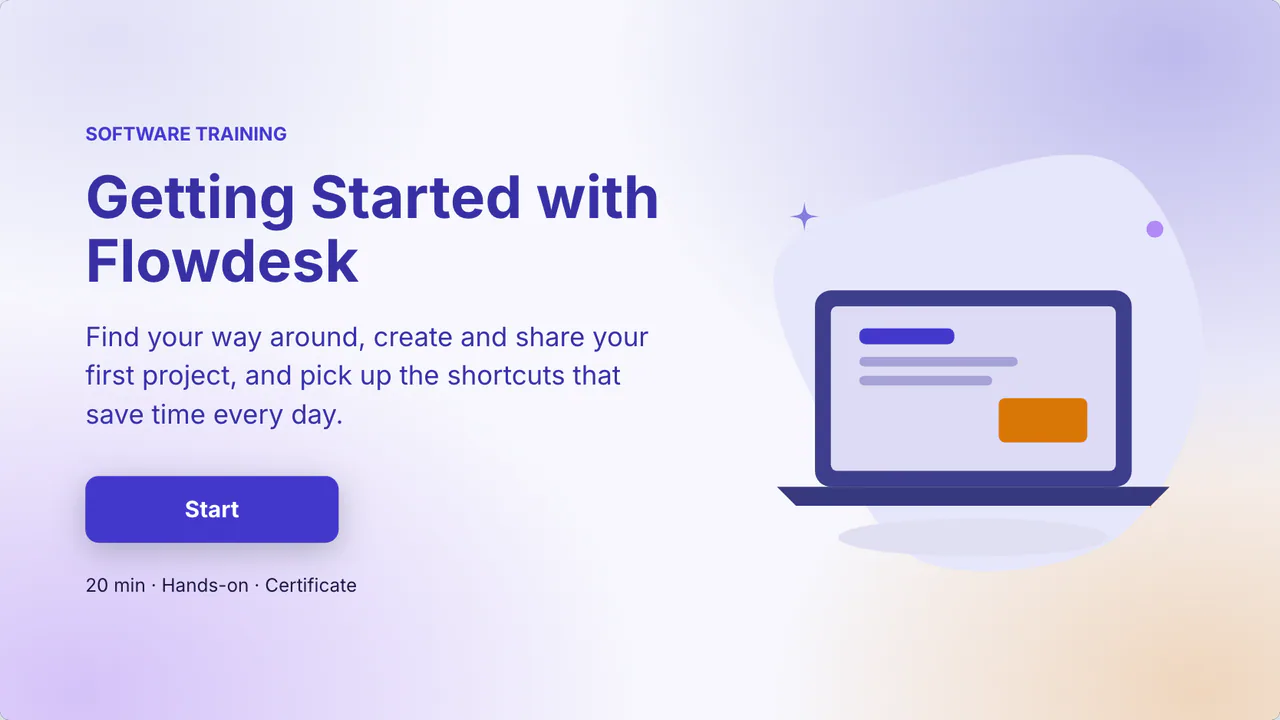 IT & softwareGetting started with a new appA free software training course for any new app: a screen tour, tasks on screenshots, click-on-the-screen practice, shortcuts and a graded quiz. Play it now.
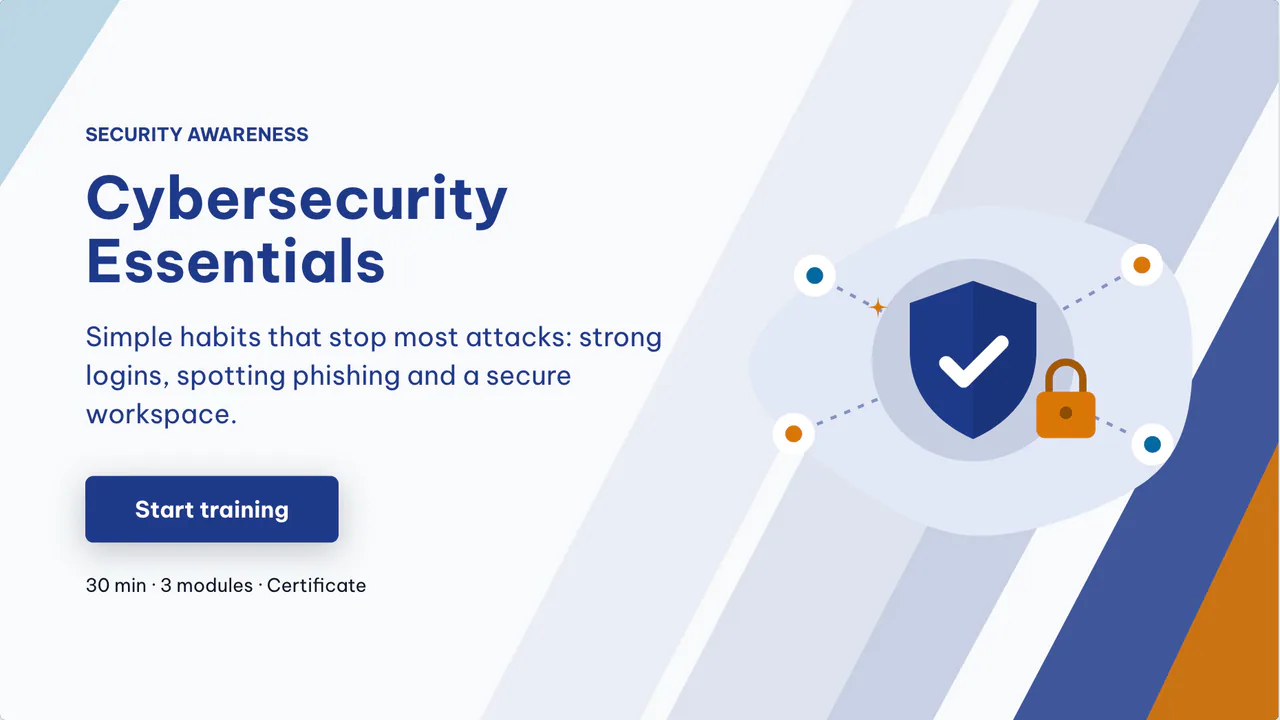 ComplianceCybersecurity awarenessA free cybersecurity awareness training course: passwords, MFA, spotting phishing, a secure desk, a timed game and a four-question quiz. Play it now.
 IT & softwareGetting IT help fastA free IT help desk course for employees: self-service, raising a ticket in the portal, priorities, a chat scenario, a memory game and a quiz. Play it now.
Works hand in hand with
Screen recorder & video
A screen recorder with auto-zoom, smooth cursor, click effects, captions, chapters and voice-over.
Learn moreLume AI
The AI course creator and editor built into Lumesson: from a prompt to a finished, editable course.
Learn morePublish
A SCORM authoring tool that also exports HTML5, Word, PDF and MP4.
Learn moreFrequently asked questions
How does Lumesson know what I clicked?
It asks macOS (its accessibility tree) which control is under the cursor, and reads the screenshot when that is not available.
Can learners be scored?
Yes. Test mode scores every action, limits attempts and reports the result to your LMS through SCORM, xAPI or cmi5.
Is it an interactive product demo tool?
You can use it that way: View mode is a click-through walkthrough of your product, and Try mode lets people do it themselves. Publish it to your website or LMS. Lumesson does not add sales-specific features such as lead capture.
Is sensitive data hidden?
On macOS 13 or later, Lumesson finds e-mails, numbers, IDs, names and addresses in the screenshots and blurs or replaces them, on your computer. Everywhere you can blur areas by hand.
Make your first course this afternoon
Lumesson is free to download for the Mac — Windows is coming soon. Add AI whenever you need it.